HEIC photos for a system that cannot read them
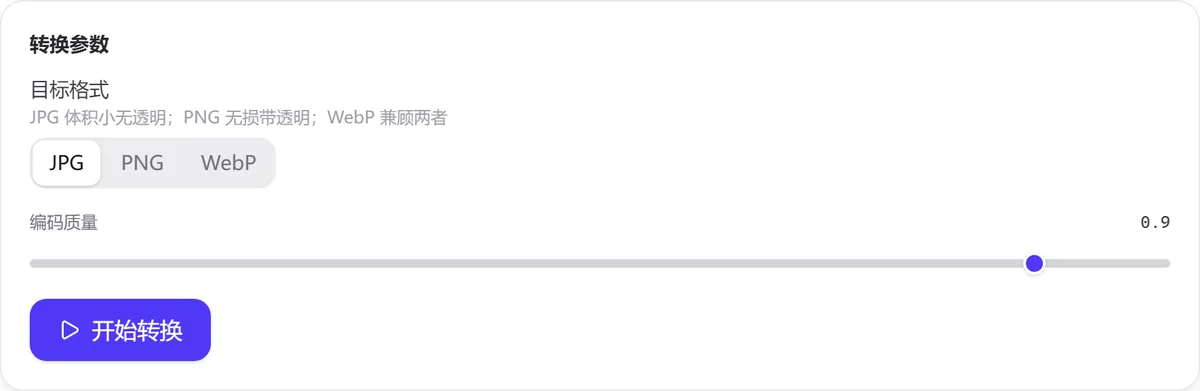
Expense systems, print shops and Windows computers often cannot open HEIC. Drag the whole batch in, target JPG, quality 0.9, download one package.
Guide
Image Converter decodes a batch of images into pixels in the browser and repackages them with the encoder you choose — JPG, PNG or WebP — into new files. The input can be an iPhone HEIC, a WebP saved from a web page, or PNG, JPG, GIF, BMP or AVIF. Images are not uploaded.
Updated 2026-09-094 sources9 min read
Image Converter decodes a batch of images into pixels in the browser and repackages them with the encoder you choose — JPG, PNG or WebP — into new files. The input can be an iPhone HEIC, a WebP saved from a web page, or PNG, JPG, GIF, BMP or AVIF. Images are not uploaded.
It targets two problems: “the other side cannot open it” and “the format is not accepted”. An HEIC photo sent to a Windows colleague, a web image saved as WebP that will not go into an older office suite, a system that only accepts JPG uploads, a transparent logo that needs PNG.
The difference from “Image Compress” is the goal: that tool reduces size within one format, this one changes the format. Underneath, both use the same canvas encoding, so the lossy-versus-lossless rules, the quality parameter and what happens to metadata are identical — this page only covers what is specific to conversion; for the background see the how-it-works section of Image Compress.
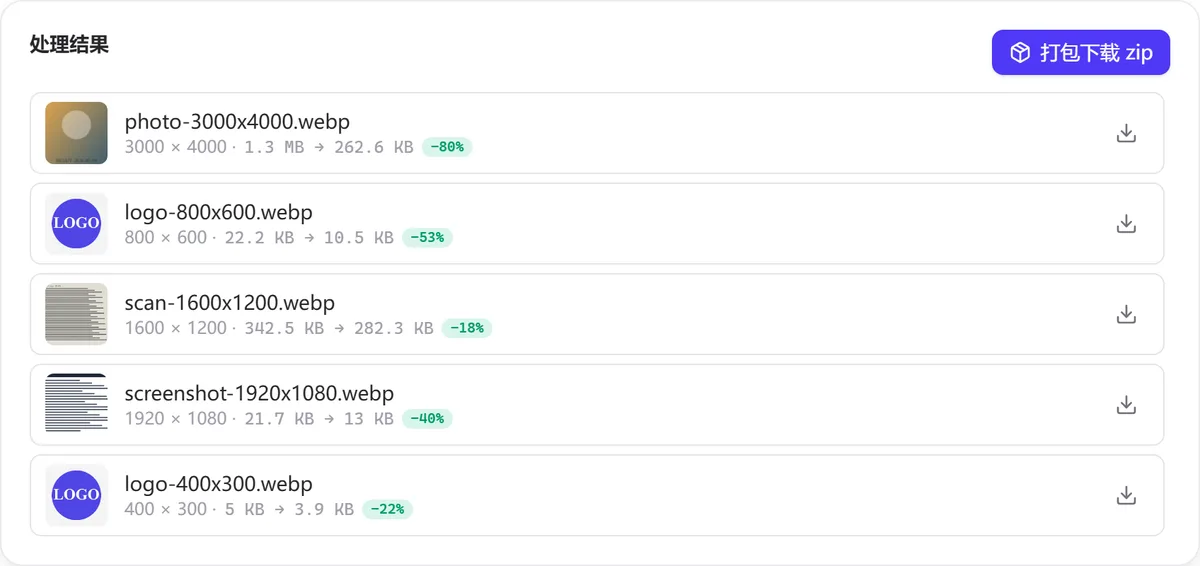
Measured sizes for the same batch of five images converted to three formats (quality 0.9, plus the JPG and WebP results at 0.75):
Input                          Original   → JPG 0.9   → PNG       → WebP 0.9   → WebP 0.75   → JPG 0.75
photo-3000x4000.jpg (photo)    1.3 MB     1.6 MB      16.3 MB     1.3 MB       263 KB        1.1 MB
logo-800x600.png (transparent) 22.2 KB    23.7 KB*    38.1 KB     13.8 KB      10.5 KB       16.8 KB*
scan-1600x1200.webp            342.5 KB   555.9 KB    4.1 MB      378.9 KB     282.3 KB      261.5 KB
screenshot-1920x1080.png       21.7 KB    72.4 KB     56.2 KB     13.7 KB      13.0 KB       58.2 KB
logo-400x300.gif               5 KB       11.7 KB     13.5 KB     5.5 KB       3.9 KB        8.2 KB
                                          * transparent areas become white
Three conclusions: a photo converted to PNG balloons more than tenfold (1.3 MB → 16.3 MB) without getting any better; a screenshot or line art converted to JPG is actually larger and rings (a 21.7 KB PNG becomes a 72 KB JPG); and WebP near 0.75 is the smallest for almost every type, at the cost of compatibility with older software.
Lossy versus lossless, JPEG quantisation, why PNG has no quality parameter and what canvas encoding implies are all explained in Image Compress. This section covers only the three things specific to the conversion path.
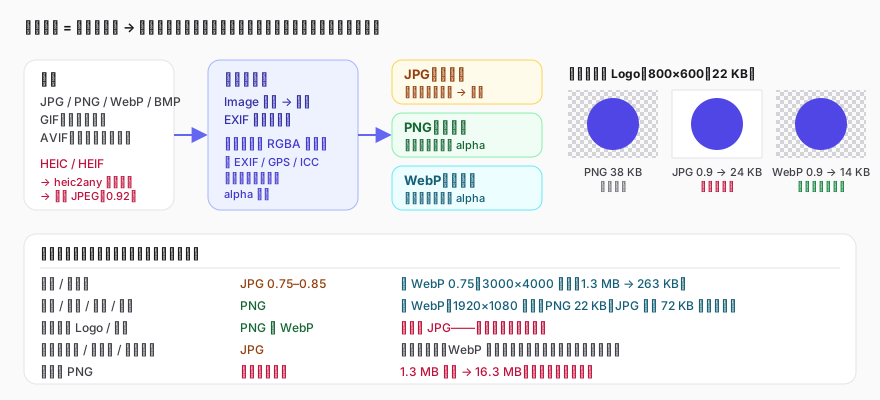
Whatever the input, the browser first decodes it into RGBA pixels on a canvas. That step flattens every format difference and drops everything that is not a pixel: EXIF shooting data and GPS, colour profiles, the later animation frames of a GIF, layers and comments. The orientation flag has already been applied to the pixels at decode time, so a portrait photo will not come out sideways — but the flag itself no longer exists. When that information has to survive, conversion is not the right tool.
The A (alpha) of the RGBA survives on the canvas, and whether it reaches the output depends on the target format: PNG and WebP support transparency natively and JPG has no alpha channel. Before writing a JPG the tool lays down white and then draws the image on top, so a transparent logo becomes a white-background logo (the two starred rows in the table). The three squares on the right of the SVG above are the same logo in three results: PNG at 38 KB keeps the transparency, JPG at 24 KB is on white, and WebP at 14 KB is both transparent and the smallest.
HEIC/HEIF is the default photo format on Apple devices, built on HEVC video coding, and most browsers cannot decode it directly. When you add a file the tool decodes it locally with heic2any (the WebAssembly build of libheif) and encodes an intermediate JPEG at quality 0.92 before the normal conversion path. So HEIC → PNG gives you “a lossless wrapper around a lossy intermediate”, large in size and no better in quality than HEIC → JPG; HEIC → JPG is the ordinary route. The .heic in the file name is replaced with the target extension.
GIF and BMP can only be inputs: a GIF contributes its first frame only and the animation is lost (use “GIF Edit” to work on animated images), and BMP is an uncompressed bitmap that shrinks dramatically in any other format.
Expense systems, print shops and Windows computers often cannot open HEIC. Drag the whole batch in, target JPG, quality 0.9, download one package.
Images saved from a web page are WebP, which older office software does not recognise. Convert screenshots to PNG and photos to JPG.
Logos from different sources arrive as WebP, GIF or transparent PNG. Converting them all to PNG keeps the transparency and they can go straight into a document; just do not choose JPG.
A photograph is continuous tone plus noise, and PNG's lossless compression barely helps with that, so the size approaches that of the raw pixels. Convert photographs to JPG or WebP instead.
No. JPG has no alpha channel and the tool always lays down white. Choose PNG or WebP when transparency is needed; for another base colour, add a background in the “Image Workbench” first.
HEIC uses HEVC coding, which is markedly more efficient than JPEG; a JPG that is 30%–40% larger at the same quality is normal. For something smaller choose WebP, or convert to JPG and cap the longest edge with “Image Compress”.
It does not. The HEIC decoder is loaded with the page and runs in your browser; images are never sent to any server.
PNG is a lossless format with no quality parameter in the specification, and the browser's encoder ignores it too, so the interface disables it rather than misleading you.
Decoding (including HEIC), canvas drawing and encoding all happen inside your browser; images are never uploaded and the tool works without a network connection. The output carries no EXIF and no GPS. See the privacy policy for more.
ALPH transparency chunk: https://developers.google.com/speed/webp/docs/riff_container(访问日期:2026-09-09)toType and quality parameters: https://github.com/alexcorvi/heic2any(访问日期:2026-09-09)Updated 2026-09-09
Batch-convert to JPG / PNG / WebP; accepts HEIC, BMP and GIF input