PDF Watermark: Text or Image, Opacity, Angle, Tiling
PDF Watermark overlays a piece of text (including Chinese, and multiple lines) or an image onto every page of a PDF, or onto a page range you choose, at an adjustable opacity and angle — all inside the browser, with no upload.
PDF Watermark overlays a piece of text (including Chinese, and multiple lines) or an image onto every page of a PDF, or onto a page range you choose, at an adjustable opacity and angle — all inside the browser, with no upload.
It solves the “mark the file before it goes out” problem: writing “Draft · not in force” on a contract draft, tiling “Confidential” across internal material, or putting the company logo on a sample. Unlike “PDF Page Numbers”, a watermark is a translucent layer drawn over the body text, sitting in the centre of the page or tiled across it rather than being a line of small type in the margin.
The boundary matters too: a watermark is an added image object. It hints and it traces, but it cannot prevent copying and it does not replace encryption. To restrict opening or printing, pair it with “PDF Protect”.
How to use
01Add the PDFdrag one in or click to choose; the file appears in the list on the left and becomes the current file. An encrypted file needs its password removed with “PDF Unlock” first.
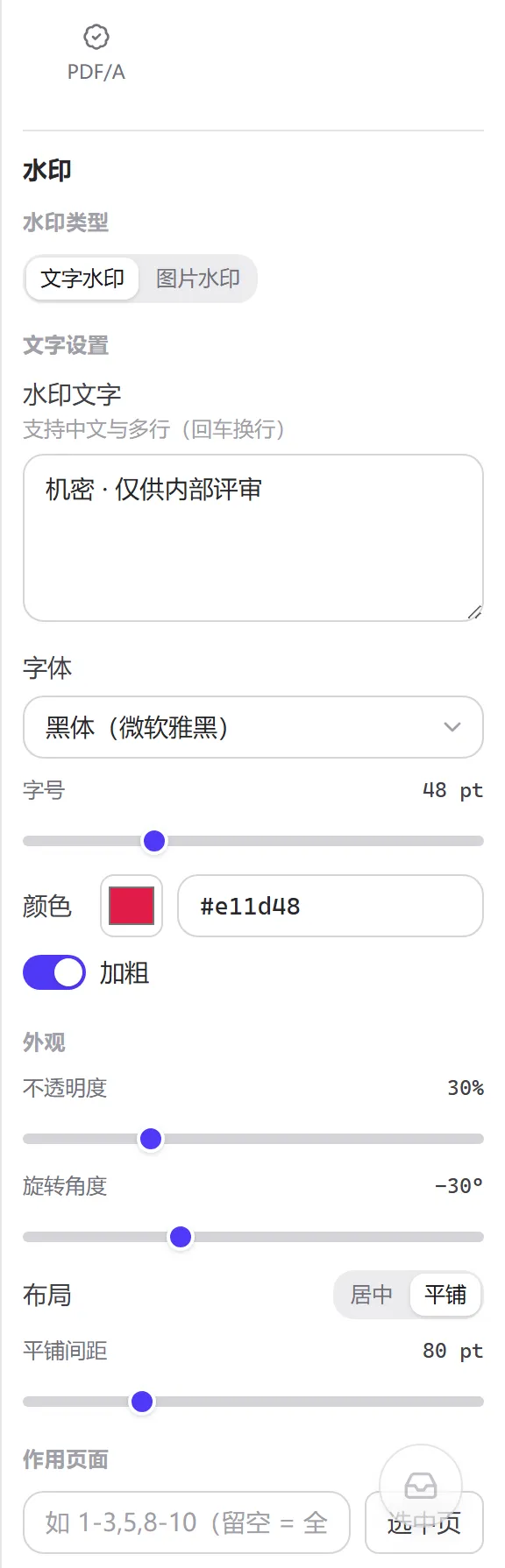
02Choose the watermark type“Text watermark” takes typed text with Enter for a new line, a choice of fonts (a CJK sans, serif and kai style, plus Arial and Times New Roman), a size of 12–144 pt, a colour and bold; “Image watermark” takes one image (a transparent PNG is recommended) sized by “width as a share of the page” from 5% to 100%.
03Adjust the appearanceopacity 5%–100% (30% by default), rotation −90° to 90° (−30° by default, leaning up and to the left), and a layout of “Centre” or “Tile”; tiling exposes a gap of 10–300 pt.
04Limit the pagesleave it empty for all pages, or type 1-3,5,8-10, or click pages in the middle area and let “Selected pages” fill the range in.
05Click “Add watermark and download”the output is <original name>_watermark.pdf and downloads automatically; the result card offers “Download again” or “Add to workspace” to keep going, for example to add page numbers or compress.
The panel reads top to bottom in the order a watermark is built: content → appearance → layout → pages.
Input and output examples
The input was a six-page English contract with vector text only, contract-6p.pdf (10.1 KB), where page 4 carries /Rotate 90 (displayed landscape). Two runs were measured:
Settings                                        Pages   Output size   Notes
Default: Confidential · 48 pt · 30% · −30°      All     59.7 KB       One PNG embedded for portrait and
· centred                                                             landscape pages, 2 in total
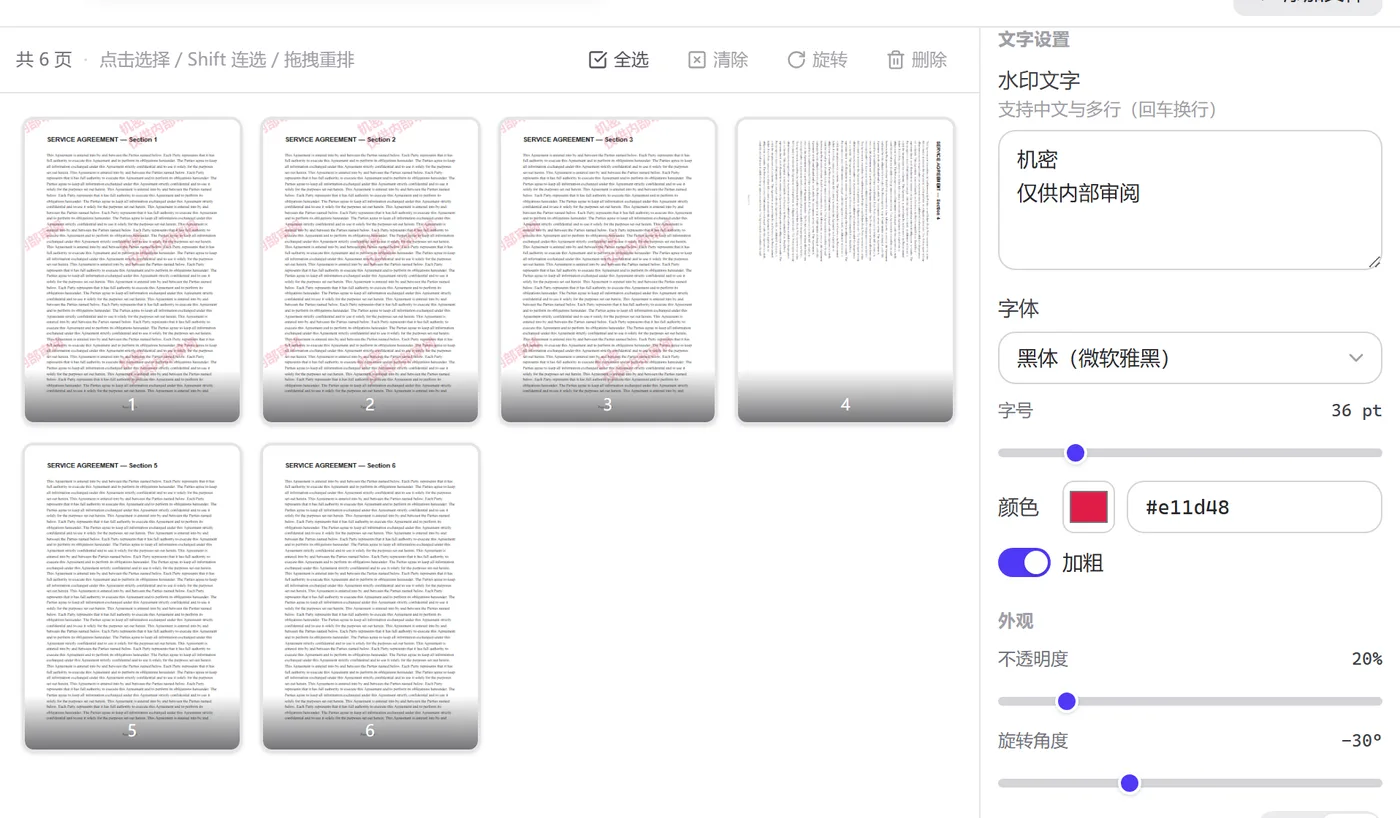
Two lines "Confidential / Internal review      1-3     76.5 KB       Tiled, gap 120 pt; only 1 PNG
only" · 36 pt · 20% · −30° · tiled                                    embedded
Almost all of the growth comes from the embedded PNG (the text is drawn as an image — see the next section) and hardly depends on the page count: whether the watermark covers 6 pages or 3, pages sharing one rotation angle share one embedded image.
Thumbnails from the second run: pages 1–3 are tiled, and the landscape page 4 plus pages 5–6 are unaffected.
How it works
The page and object structure of a PDF is covered in the “How it works” section of “PDF Merge” (see here); this section only covers what is specific to watermarks — why the text becomes an image first, and how it is placed on the page.
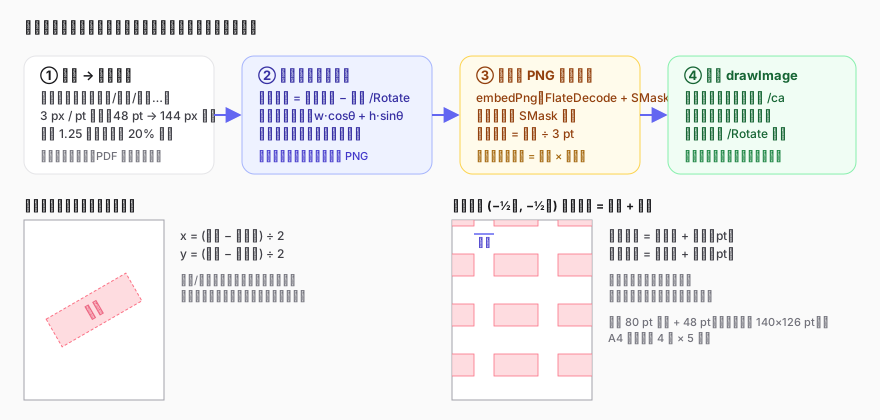
The four-step pipeline for a text watermark, and the coordinate maths for centred versus tiled layout.
Why the text is drawn as an image first
Writing text directly into a PDF needs a font: none of the 14 standard fonts contains CJK glyphs, and embedding a CJK font means handling glyph subsets, encoding maps and licensing. This tool sidesteps the problem: the browser canvas draws the text in the font, size and colour you chose onto a transparent canvas, and the canvas is then encoded as a PNG and embedded into the PDF. The “kai” style you pick in the panel is the one on your computer, and the recipient sees exactly the same thing, because the PDF contains only an image.
The drawing resolution is 3 pixels per pt: 48 pt text is drawn 144 px tall, line spacing is 1.25× the font size, and a 20% padding is left around the edges. The 3× oversampling keeps edges smooth when a reader zooms to 200%–300%, and going higher would only add size for nothing.
How rotation is handled, and how rotated pages are compensated
The angle is not written into a PDF transformation matrix — it is baked straight into the image: the transparent canvas is rotated, and the output canvas is the bounding box that contains it (width = w·cosθ + h·sinθ). Everything after that only has to place a tidy rectangle.
A PDF page can carry /Rotate 90/180/270, meaning the whole page is rotated for display. Drawn directly, the watermark would rotate along with the page. The tool uses “slider angle − page rotation” as the effective baking angle and converts the visual coordinates back into page coordinates, so the landscape page 4 ends up looking the same way round as the portrait pages. Pages that share a rotation angle share one embedded image, so more pages only add one more copy of it.
Opacity is a graphics state, not pixels
30% opacity does not fade the PNG's pixels; it sets the constant alpha of the graphics state at draw time (the /ca entry in §8.4.5 of the PDF specification), and the reader blends the image with the body text underneath. It also means that selecting this image object in an editor and deleting it removes the whole watermark — a watermark is not tamper-proofing.
Coordinates for centred and tiled layout
Centred: x = (page width − watermark width) / 2, y = (page height − watermark height) / 2, where the width and height are those of the bounding box after rotation.
Tiling starts half a watermark outside the top-left corner of the page, steps horizontally by watermark width + gap and vertically by watermark height + gap, and continues until it runs past the page. Starting outside is what covers all four edges instead of leaving a blank band around them. The default 48 pt “Confidential” has a bounding box of roughly 140 × 126 pt at −30°; with an 80 pt gap an A4 portrait page fits about 4 columns × 5 rows.
Image watermarks
An image is first fitted into a canvas whose longest side is at most 2000 px (larger images are scaled down proportionally), then it goes through the same rotation baking and embedding. The displayed width is converted from “a percentage of the page width”, so the same logo occupies the same share of an A4 and an A3 page. A PNG with an alpha channel keeps its transparency; a JPEG is a solid rectangle.
Advanced usage
Skip the cover, mark the body: set the page range to 2- (page 2 to the end). The page-range syntax matches “PDF Split” (see here).
Two watermark layers: add a large centred logo first, “Add to workspace”, then tile small text on the new file. Each layer is an independent image object.
Weld the watermark in: when the mark has to survive an editor deleting it individually, send the result through “PDF Compress” to rasterise whole pages — at the cost of the text layer.
Keep review and final copies apart: export a watermarked review copy and an unwatermarked final copy from the same original rather than trying to remove a watermark later — there is no reliable one-click removal for an overlaid object, and this tool does not offer one.
Scope and limitations
Input
a PDF, one at a time, the file currently selected in the list on the left; an encrypted file needs its password removed in “PDF Unlock” first.
Text
any Unicode text, multiple lines supported; fonts come from your device, with 5 choices; size 12–144 pt; any colour; bold optional.
Image
JPG, PNG, WebP and anything else the browser can decode; the longest side is capped at 2000 px before processing; width is set from 5% to 100% of the page width.
Appearance
opacity 5%–100%, rotation −90° to 90°, centred or tiled, tile gap 10–300 pt.
Pages
empty means all pages; 1-3,5,8- style ranges and “Selected pages” are supported; page numbers follow the current arrangement, including pages deleted or reordered in the workspace.
Rotated pages
pages carrying /Rotate are compensated automatically so the watermark keeps a consistent visual direction.
Output
one PNG is embedded per distinct rotation angle and reused by the other pages; the original text layer, bookmarks, links and form fields are preserved; a digital signature is invalidated because the file was modified.
What it does not do
it does not remove an existing watermark; it does not prevent copying or printing (use “PDF Protect”); it does not set a different text or position per page; and it does not offer outlines, shadows or other effects.
Common misconceptions
“Once watermarked, nobody can copy it”: the body text can still be selected and copied, and the image object can be removed by an editor. Use encryption to restrict use; rasterise if the mark has to be inseparable from the content.
“The watermark text should be searchable”: it is not. The text is drawn as an embedded image, so neither find-in-page nor a screen reader can reach it — which is also why no font has to be embedded.
“The lower the opacity the better”: too low and the mark almost disappears in print or on a photocopy. 20%–30% is a common range for on-screen reading and around 40% for files that will be printed.
“The font changes on another computer”: only at the moment it is generated. Once generated, the PDF holds an image, and every recipient sees the same thing on every device.
Typical use cases
Mark a contract draft “not in force”
When legal sends a contract that is still being amended, add a centred “Draft · subject to the signed version” at 30% opacity so it cannot be mistaken for a final copy; issue the final version as a separate file with no watermark.
Put the recipient on internal material
Send the same training material to several departments, each tiled with “Confidential · Marketing only”. If the file leaks, the watermark says where it came from. Use Enter for multiple lines.
Keep a report cover clean
An annual report cover carries a full-bleed design and should not have text over it. Set the page range to 2- and tile “Internal” from page 2 onwards, leaving the cover untouched.
FAQ
Does it support Chinese? Will it show as boxes?
Yes. The text is drawn as an image using the fonts in your browser and then embedded, so as long as the preview shows the right characters the output does too, without depending on the recipient's fonts.
Why does the file only grow by tens of KB instead of scaling with the page count?
Only one PNG is embedded per distinct page rotation angle, and each page references it from a drawing instruction. The size depends mainly on the font size and the length of the text: bigger type and more lines make a bigger PNG.
Can it remove a watermark someone else added?
No. A watermark in someone else's file may be an image, text or a vector object, and its relationship to the body varies; removing another party's watermark usually raises copyright and contract issues as well, so ask the author for an unwatermarked copy.
Does a digital signature still hold after adding a watermark?
No. Adding anything to a signed PDF changes the file, and verification will report that the document has been modified. The correct order is to watermark first and sign afterwards.
Why does an image watermark show white squares?
The image has no alpha channel (a JPEG, for instance), so its white background is drawn as content. Save the logo as a PNG with a transparent background.
Privacy
Text drawing, image handling and PDF reading and writing all happen inside your browser; the file never leaves your device and the tool works without a network connection. See the privacy policy for more.
References
ISO 32000-1:2008, PDF 1.7, §8.4.5 Graphics State Parameter Dictionaries (/ca constant alpha), §8.9.5 Image Dictionaries (/SMask), §7.7.3.3 Page Objects (/Rotate): https://opensource.adobe.com/dcs/pdf/PDF32000_2008.pdf(访问日期:2026-09-09)